.png&w=384&q=75&dpl=dpl_4LaKVgMDgXFAWjUxtUQQSP7dGFic)
Viber for Web: Setup, Browser Options, and Real Fixes

Viber doesn't offer a standalone web app you log into like email. Browser access is limited, while the official cross-device experience depends on mirroring an existing mobile account, and the mobile app must remain installed and active.
That distinction matters because much of the advice around Viber for Web treats it like Gmail or Outlook Web. It isn't. Viber launched on December 2, 2010, and the company later described its first decade as producing more than 1 trillion free calling minutes (Viber's 10-year milestone). The platform had already reported more than 360 million unique registered users by 2014, so the confusion affects a large, established messaging ecosystem, not a niche experiment.
What Viber for Web Actually Means Today
The popular assumption is simple: open a browser, visit a Viber login page, scan a code, and use a complete web inbox. That isn't the product Viber officially presents. Viber's official download flow requires an active Viber account on a mobile phone before Viber for Desktop can be activated (Viber's download page).
The browser-based option most clearly supported by Viber is Viber Out for Web, which handles Viber Out account functions and calling-related purchases. It isn't a full chat client. The normal messaging experience belongs in the mobile app or the official desktop application linked to that mobile account.
| Option | What It Does | Requires Mobile App |
|---|---|---|
| Viber Out for Web | Manages Viber Out functions through a browser | Usually requires an existing account |
| Viber for Desktop | Mirrors messaging on an authorized computer | Yes |
| Viber mobile app | Creates, verifies, and controls the account | Yes |
Search results and third-party guides sometimes describe browser previews or browser-based mirrors, but coverage is inconsistent. One guide claims browser support in Chrome and Edge, with Firefox in beta, while another says Viber has no browser client and requires desktop software or the mobile app (the conflicting browser-access discussion). The safe recommendation is to treat Viber for Desktop as the official full messaging route and avoid pages claiming to host a complete Viber web inbox.
Anyone setting up a new account should also separate browser access from phone verification. A guide to Viber verification addresses the number-confirmation stage, not a browser login.
Preparing Your Mobile App for Browser Linking
The phone is the account's anchor. Before linking another device, the user should update Viber through the official App Store or Google Play, open the app, and confirm that the intended phone number is still attached to the account. Viber's desktop product doesn't create an independent account, so a browser or desktop client can't replace the primary mobile setup.
The preparation is straightforward:
- Open the current mobile account. Confirm that messages load and that the phone has a stable Wi-Fi or mobile-data connection.
- Find the QR scanner. In Viber, open More, then use the QR icon near the profile area. The exact interface can vary by app version.
- Keep verification available. If Viber asks to confirm ownership, the number must be able to receive the requested verification method. A phone number used for a new account is different from a number used to recover an existing account.
- Avoid aggressive battery restrictions. Battery-saving settings that suspend Viber can interrupt device authorization or later synchronization.
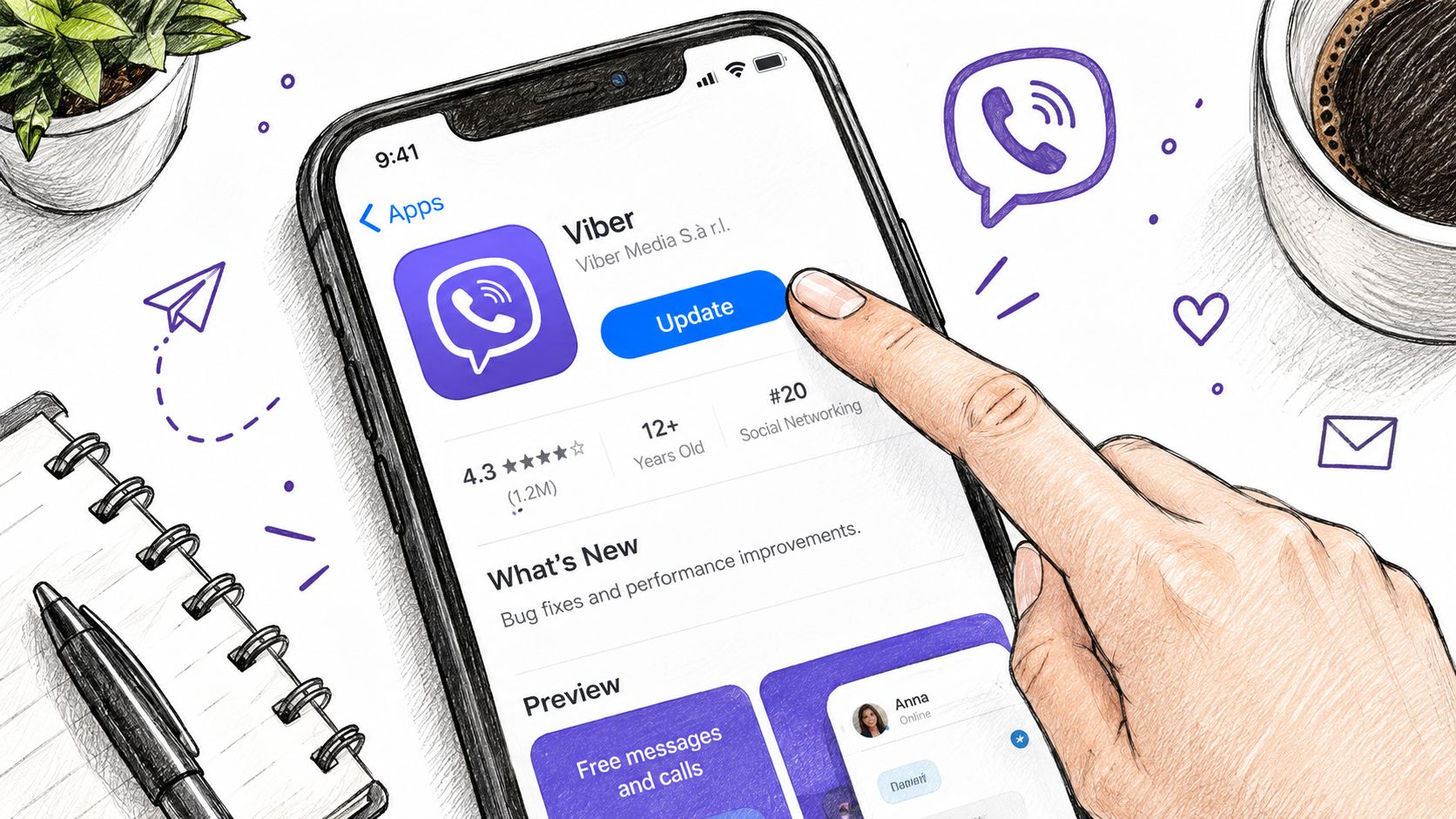
Practical rule: The phone should stay unlocked and connected during the initial pairing. A successful scan doesn't guarantee that synchronization will finish if the mobile app is immediately suspended.
For readers troubleshooting code delivery rather than linking, the SMS verification code guide covers the separate verification problem without treating it as a browser feature.
Linking Your Account to a Browser or Desktop
The receiving device starts the pairing process. For the dependable full messaging route, install the official Viber desktop client from Viber's own download page, open it, and follow the prompt to link an existing account. The computer displays a QR code, and the mobile app scans it.
On the phone, open More, tap the QR scanner, and point it at the code shown by the desktop client. Viber may show a confirmation prompt or matching code. The user should check that the displayed details correspond to the intended computer before approving access.
The choices are different in practice:
- Desktop client: The proper choice for regular messaging on a computer. It mirrors the existing mobile account and depends on that account remaining available.
- Viber Out for Web: Useful for Viber Out account functions, but it shouldn't be mistaken for a complete messenger interface.
- Unofficial browser pages: Not a safe substitute. They can be wrappers, outdated demonstrations, or phishing pages that imitate an authorization flow.
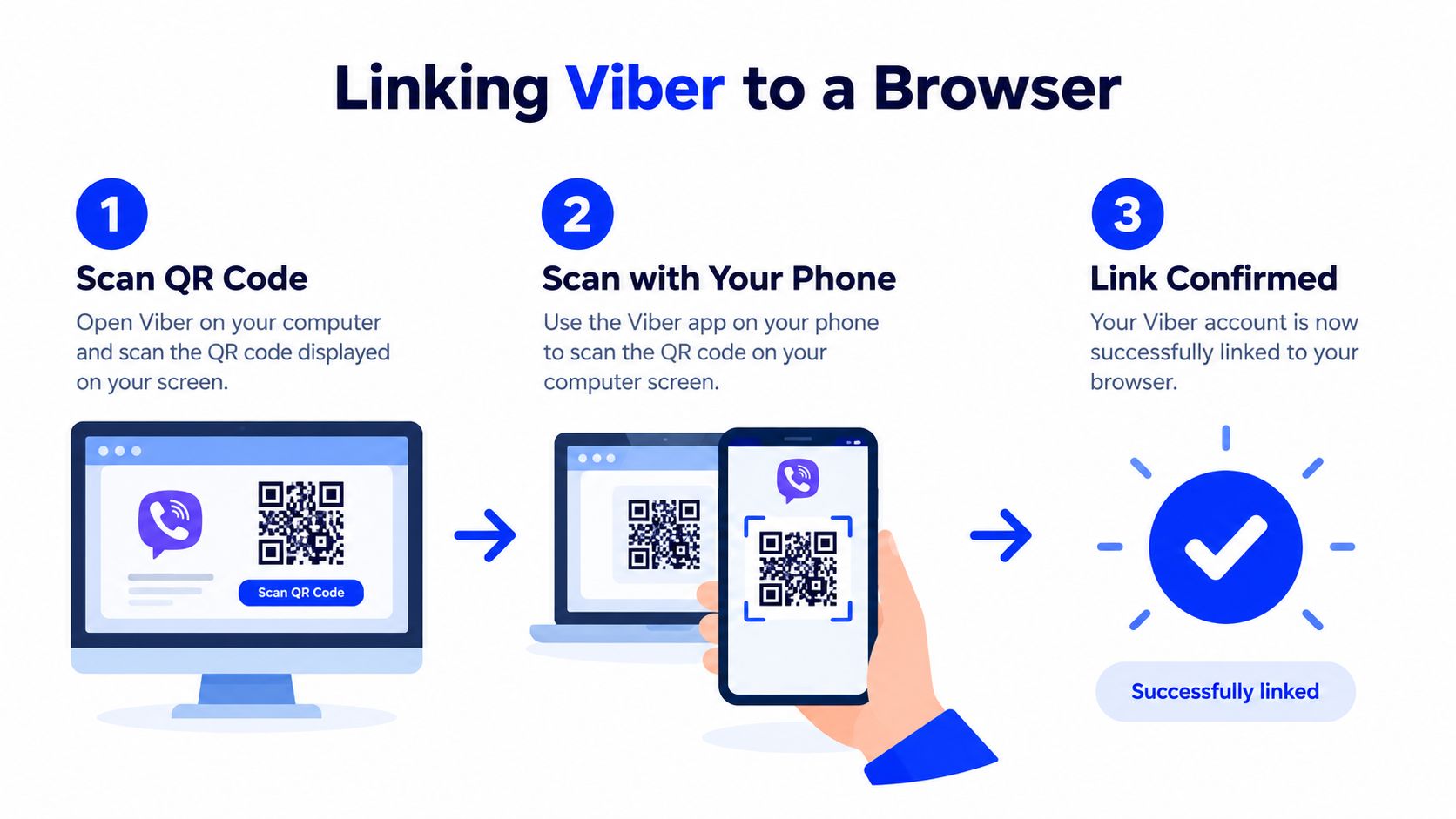
After approval, the desktop client can synchronize account content. The phone shouldn't be treated as disposable, because it remains the primary account device and the control point for linked sessions. Teams evaluating messaging across platforms can also compare broader enterprise messaging solutions when Viber's device model doesn't fit their workflow.
The following video illustrates the QR-linking concept:
How Verification and PIN Requests Work
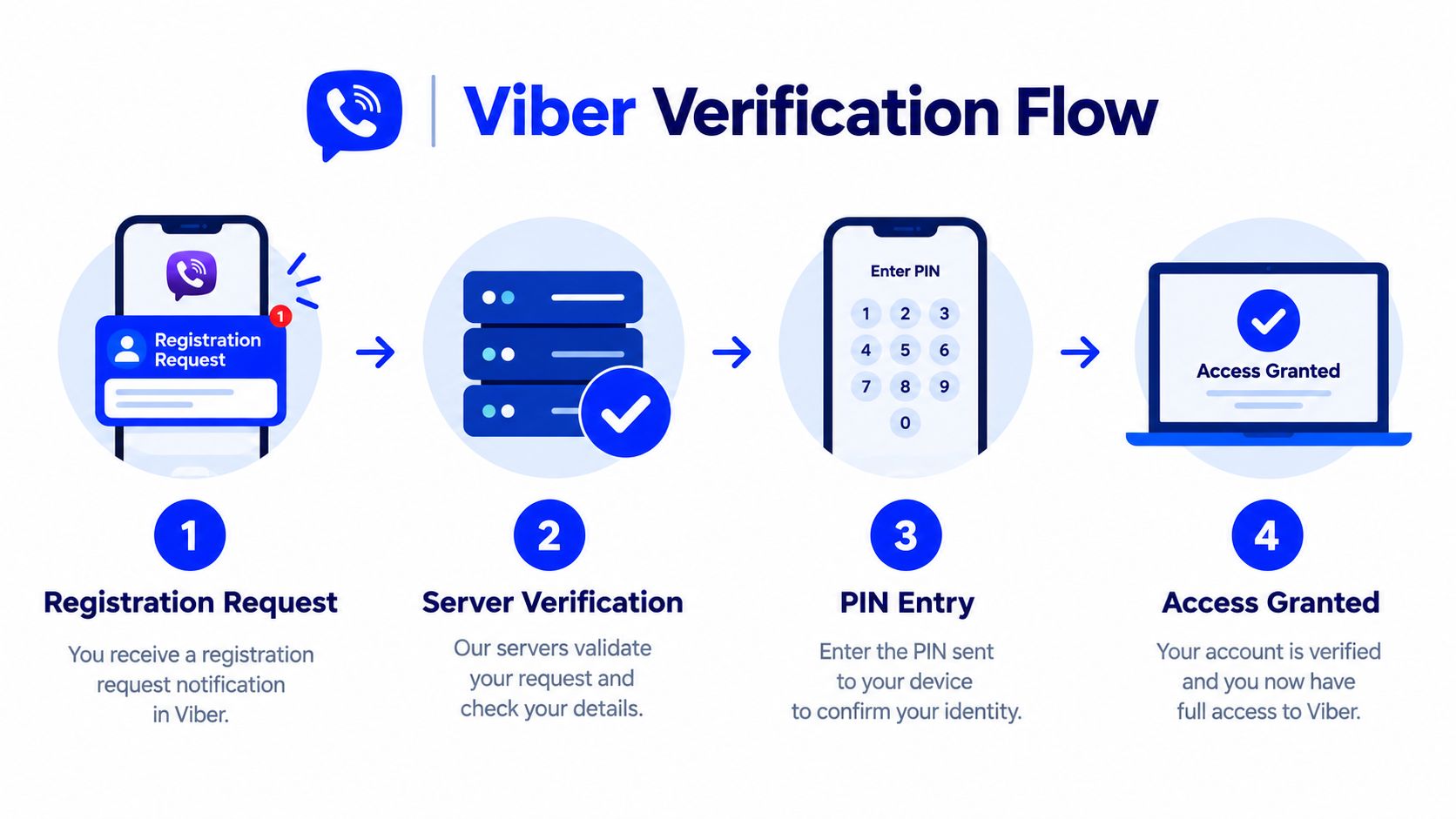
Verification happens through the mobile account, not as a standalone browser registration. The user enters the phone number with the correct country code and without an extra leading zero when the international format already includes the country prefix. A formatting error can send the code to the wrong destination or prevent the request from completing.
Viber generally uses SMS as the primary route, with voice verification available in some situations. The exact fallback depends on the account flow and what Viber offers on screen. A PIN request is a different control from the SMS code. The SMS or call confirms access to the number, while the Viber PIN helps protect account access and certain recovery or backup actions.
Important distinction: A new number can help create a new account, but it doesn't recover an existing Viber account tied to a previous number.
If a recovery request requires a PIN update, Viber Support provides a specific Request a PIN Code Update path. Its form also says to remove the zero from the beginning of the mobile number when submitting the request (Viber Support's request form). That formatting instruction applies to the support request, not to every screen in the app.
Common Problems and How to Fix Them
Most failures fall into three groups. Matching the symptom to the group saves more time than repeatedly scanning the same QR code.
Linking failures
A QR code that fails immediately can indicate an outdated mobile or desktop build, missing camera permission, or a browser environment that blocks required cookies. Update Viber first, grant camera access, and generate a fresh code from the official client. If a work network blocks Viber domains, testing from a permitted connection can distinguish a network problem from an account problem.
Verification failures
An absent SMS doesn't prove that the Viber account is unusable. Check the country code and number format, confirm that the phone can receive messages, and try the offered voice route if SMS remains unavailable. For a separate guide to code-reception troubleshooting, see how to receive an SMS verification code.
A rejected PIN after a restore is a recovery issue, not a QR-linking issue. Use Viber's official support path rather than repeatedly requesting codes, especially when the account is still active on the original phone.
Session failures
When chats stop syncing, first check whether Viber remains active on the phone and whether the linked device still appears in the app's device list. Media problems can also reflect connection restrictions or download settings, while an unexpected sign-out may require another authorization.
Claims that an outdated phone client causes “roughly half” of these cases shouldn't be repeated as fact. The practical fix remains the same: update the mobile app before diagnosing more complicated causes.
Privacy and Session Hygiene on Shared Devices
A linked Viber session should be treated like an open social account on a borrowed laptop. Once the account is paired, the person using that computer may see conversations and shared content until the session is ended. Incognito mode doesn't change that risk. It mainly changes local browser history and storage behavior.
Viber's security materials say messages are encrypted in transit, with encryption keys held only on user devices, and recommend identity verification through secret-key exchange (Viber's security features). That protection doesn't make an unattended linked computer safe. The user still controls who can access the screen, browser profile, extensions, and operating-system session.
Use these habits:
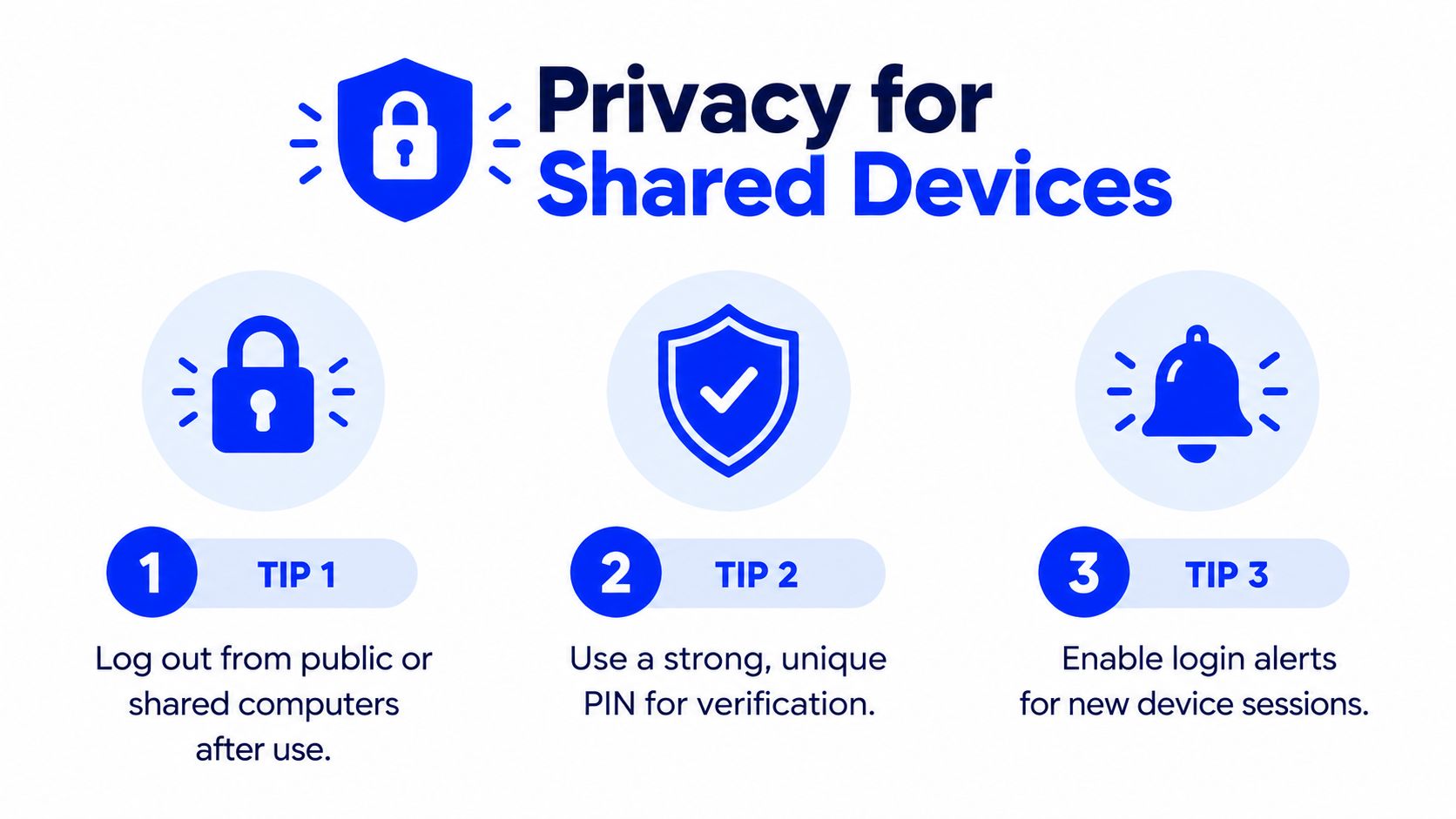
- End the session from the phone: Don't rely only on closing a tab or deleting cookies.
- Audit linked devices: Remove computers that are unfamiliar, shared, or no longer needed.
- Avoid public terminals: Public and coworking computers may contain extensions or software that can observe displayed content.
- Protect the phone: Use a screen lock and keep Viber's account-security settings enabled.
- Control previews and media: Reduce visible message previews and avoid automatic downloads on shared machines.
Browser privacy settings, cookies, and local storage can affect what remains on a computer, but clearing browser data isn't a substitute for revoking the linked device inside Viber. Users should also treat a changed contact detail or unexpected official-looking message as a reason to verify identity. Viber says official messages come from a blue-verified official chat, and Android users can enable automatic spam checking in Privacy settings.
Quick Checklist Before You Start
A short readiness check prevents most avoidable interruptions. The user should confirm that the mobile app opens normally, the intended number is attached, and the phone has a stable connection through Wi-Fi or mobile data. The official desktop client should come from Viber, not from a download page promising a browser inbox.
Before scanning, check the following:
- Account control: The phone remains available, active, and protected by a screen lock.
- Number format: The country code and number match the account or the intended new registration.
- Verification route: SMS access is available, with voice verification considered only when Viber offers it.
- Device choice: A persistent desktop client is more appropriate than chasing an unsupported browser mirror.
- Privacy state: The computer isn't public, browser password saving is disabled for the Viber domain, and unnecessary extensions are removed.
- Session cleanup: The linked-device list will be reviewed after use, with unused access revoked from the mobile app.
A temporary verification number also shouldn't be confused with a permanent phone line. LineVerifier is a paid service that lets customers choose a supported service and country, review the available offer and price, and receive SMS verification codes through its dashboard. Availability, number type, access duration, refund eligibility, and acceptance by Viber depend on the selected offer and current terms, so it doesn't guarantee account recovery, voice calls, or continued account access.
For a legitimate new Viber registration that needs SMS reception, review the current offer and requirements before starting, then keep recovery methods under the account owner's control. Visit LineVerifier to check the available Viber verification option and use it only when a temporary SMS number fits the account setup.