.png&w=384&q=75&dpl=dpl_4LaKVgMDgXFAWjUxtUQQSP7dGFic)
Incognito Mode in Chrome: What It Hides and What It Doesn't
Chrome Incognito only hides activity from other people who use the same device after the window closes. It does not make browsing invisible to websites, internet providers, employers, schools, or the platforms where someone creates or verifies accounts.
That's the part most Incognito advice gets wrong. People often treat Incognito mode in Chrome like a privacy cloak, when it's really a local cleanup tool. It helps keep a browser session off the device's history list, but it doesn't erase the network trail or change a platform's rules for sign-in, verification, or recovery.
A major court fight made that misunderstanding hard to ignore. In a US privacy case filed in 2020, Google agreed in April 2024 to destroy billions of records collected from private-browsing sessions as part of a settlement covering millions of users who used private browsing since June 1, 2016, with some limits set to remain in place for five years after the deal was filed in federal court, according to The Guardian's reporting on the Incognito settlement. The practical lesson is simple. Incognito has always been narrower than many people assume.
What Incognito Mode in Chrome Actually Does
Incognito works like a browser session with a short memory.
Open a normal Chrome window, and the browser gradually builds a trail on the device: history entries, cookies that keep you signed in, site data, and bits of information typed into forms. Open an Incognito window, and Chrome creates a separate temporary session instead. While that window is open, sites can still function normally, but once every Incognito window is closed, Chrome discards that session data from the device. Downloads and bookmarks are the exception, because those are saved intentionally.
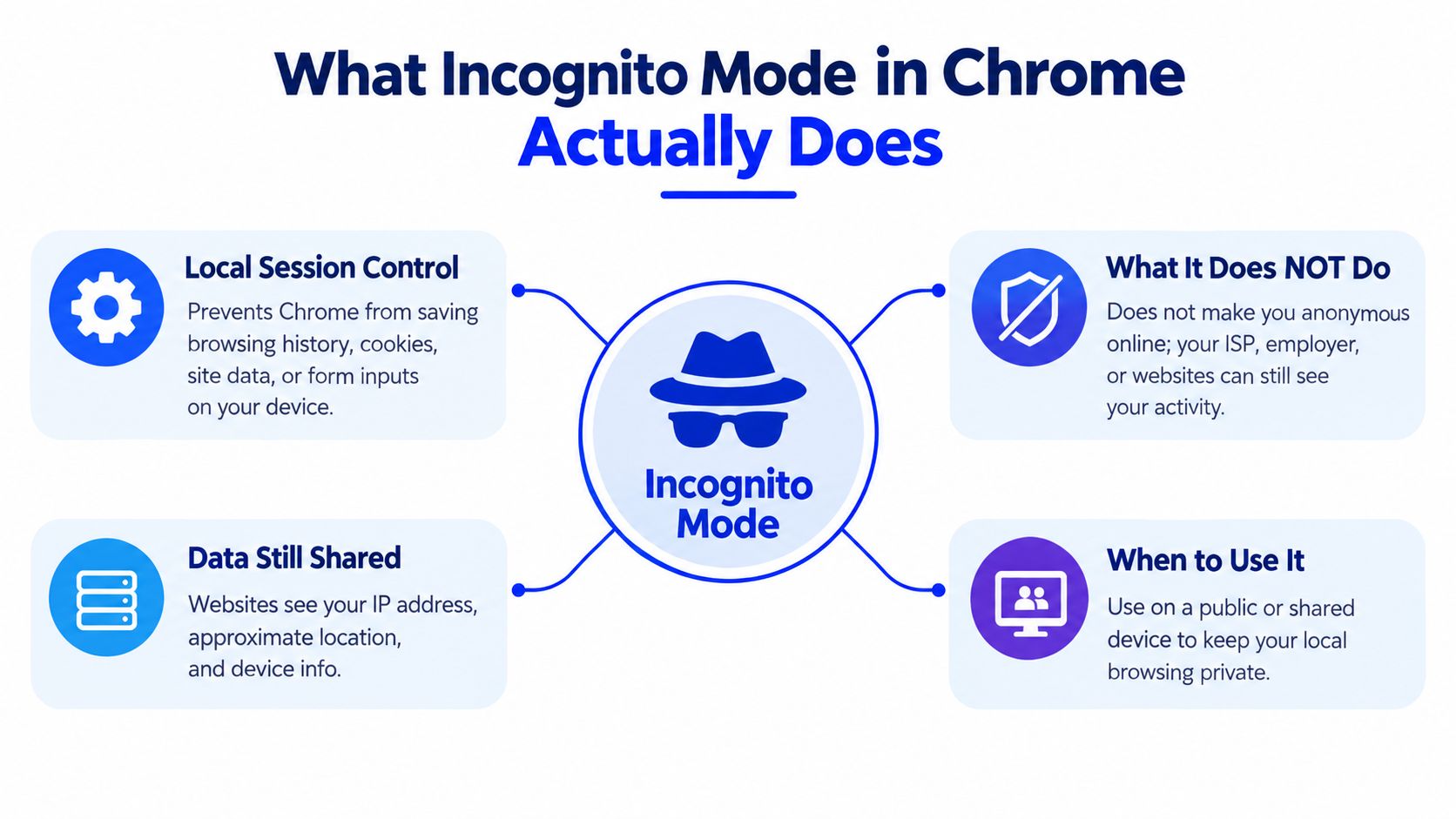
That makes Incognito useful for very specific jobs. You might sign into a second email account without disturbing your main session, check how a site behaves without old cookies attached, or use a shared computer without leaving your browsing history behind for the next person.
Where readers get tripped up is the boundary between browser privacy and platform rules. Incognito clears local traces after the session ends, but it does not reset how a website identifies an account during sign-in, verification, or recovery. If a service asks for a phone number, recognizes a device pattern, flags repeated sign-up attempts, or requires a recovery email, an Incognito window does not cancel those checks. The browser can forget the session. The platform can still enforce its own records and risk signals.
That distinction matters in real account workflows. If someone opens Incognito to create an account, retry a login, or work around a verification prompt, they often expect a blank slate. What they get is a cleaner local session. The site on the other end may still connect the attempt to the same account, network, or verification requirement.
For readers comparing browser privacy with search privacy, private search choices on Google involve a different layer of the problem. Search privacy, local browser cleanup, and account verification each follow different rules.
How to Open and Close Incognito Mode
Opening Incognito is the easy part. Closing it fully is the part that affects real-world logins, verification retries, and account recovery steps.
If you use Incognito while signing into an email account, testing a second profile, or retrying a recovery form, Chrome treats those tabs as one temporary private session. That session stays active until every Incognito window is closed. Leaving one private window open in the background can keep the session alive longer than you expect.
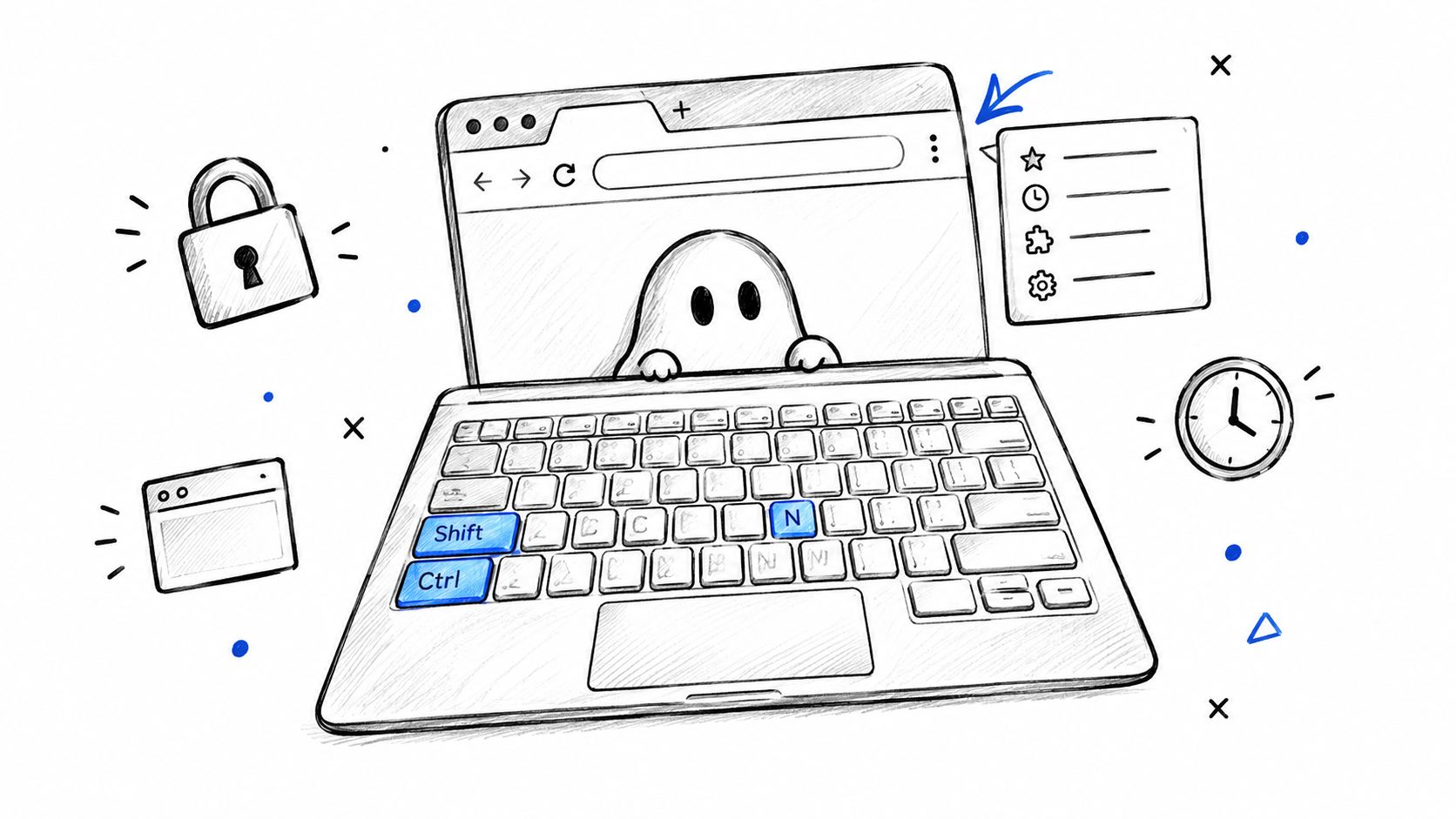
On desktop, the quickest route is the keyboard shortcut. Chrome uses Ctrl+Shift+N on Windows and Linux, and Command+Shift+N on Mac. You can also open Chrome's three-dot menu and choose New Incognito Window.
Desktop and mobile paths
The steps vary a little by device:
- Desktop shortcut: Press the keyboard shortcut to open a separate Incognito window.
- Chrome menu: Select the three-dot menu, then choose New Incognito Window.
- Right-click route: On some systems, you can right-click a link and open it in an Incognito window.
- Android: Open Chrome's menu and create a New incognito tab.
- iPhone or iPad: Switch to the private tab view, then open a new private tab.
Closing deserves more care than opening. Closing one tab is like shutting one door in a hallway while the building is still open. If another Incognito tab or window remains open, temporary cookies, site sessions, and sign-ins may still be active inside that private session.
That detail matters during account workflows. A site may still show you as signed in, continue a verification attempt, or keep a recovery page active until the last Incognito window is gone. Closing every private window resets the local browser session. It does not guarantee the site will forget the attempt on its side.
A short visual walkthrough helps when Chrome's menus differ by device:
Close every Incognito window, not just the tab in front. That is when Chrome finishes discarding the local private session.
What Chrome Saves and What It Discards
The boundary becomes clearer when the session is split into two buckets: what Chrome drops from the device, and what still survives somewhere else.
Google's help documentation says Chrome doesn't save browsing history, form entries, cookies, or site data after all Incognito windows are closed, and its help-community guidance also says there's no saved Incognito history to recover later because that session data is discarded rather than stored, as noted in Google's Chrome community explanation. Separate Chrome help also states that files downloaded in Incognito still remain in the device's Downloads folder after the session ends, according to Google's page about downloads in Incognito.
Incognito saved vs discarded
| Data type | Discarded when Incognito closes | Still visible or saved |
|---|---|---|
| Browsing history in Chrome | Yes | No local history remains in Chrome after all Incognito windows close |
| Cookies and site data | Yes | Websites may still have server-side records of the visit |
| Form entries | Yes | Data already submitted to a website can still exist on that website |
| Downloads | No | Files stay in the Downloads folder |
| Bookmarks | No | Bookmarks remain in the browser |
| Signed-in activity on a website | No | The service can still associate activity with the account used |
The part people miss
If someone signs in to YouTube, Gmail, a bank, or a social platform inside Incognito, the site can still record that activity on its own systems. Incognito doesn't cancel account-level logging just because Chrome later discards local traces.
That's also why Incognito can feel “private” and “not private” at the same time. Both are true, depending on whether the question is about the device or the service.
Incognito vs Guest, Firefox Private, and Safari Private
Not every private-looking browser mode solves the same problem. Some separate profiles better. Others focus more on anti-tracking.
Side-by-side comparison
| Mode | Profile Isolated | Blocks Trackers | Cookies After Close | Best For |
|---|---|---|---|---|
| Chrome Incognito | Partly. Separate session, but still within Chrome | Chrome blocks third-party cookies in Incognito, with exceptions possible | Cleared after close | Quick local privacy on the same device |
| Chrome Guest | Yes. Separate from the main Chrome profile | Not the main purpose | Session ends when Guest closes | Lending a device without exposing the main profile |
| Firefox Private | Yes, as a separate private session | Stronger anti-tracking features are built into Firefox Private Browsing | Private session cookies don't persist after close | People who want local privacy plus more tracking resistance |
| Safari Private | Yes, as a private browsing mode | Safari Private is designed with anti-tracking protections | Private session cookies don't persist after close | Apple users who want a stronger built-in privacy posture |
Chrome has also added more protection inside Incognito over time. Google said Chrome began blocking third-party cookies by default in Incognito in 2020, while still allowing site-specific exceptions, in its Chrome privacy controls announcement. That improves cross-site tracking resistance, but it still doesn't turn Incognito into a full anonymity system.
Guest mode is often the better choice when the goal is “someone else needs this computer for a few minutes.” Incognito is better for “the same user wants a temporary clean session.”
Why Incognito Does Not Bypass Account Verification
Browser privacy and platform rules split apart.
A platform doesn't decide whether to request verification by checking whether Chrome saved local history. It decides based on signals it receives during the session, such as the submitted login details, the account status, the connection being used, and the behavior it sees on its own side. Incognito doesn't remove those signals.
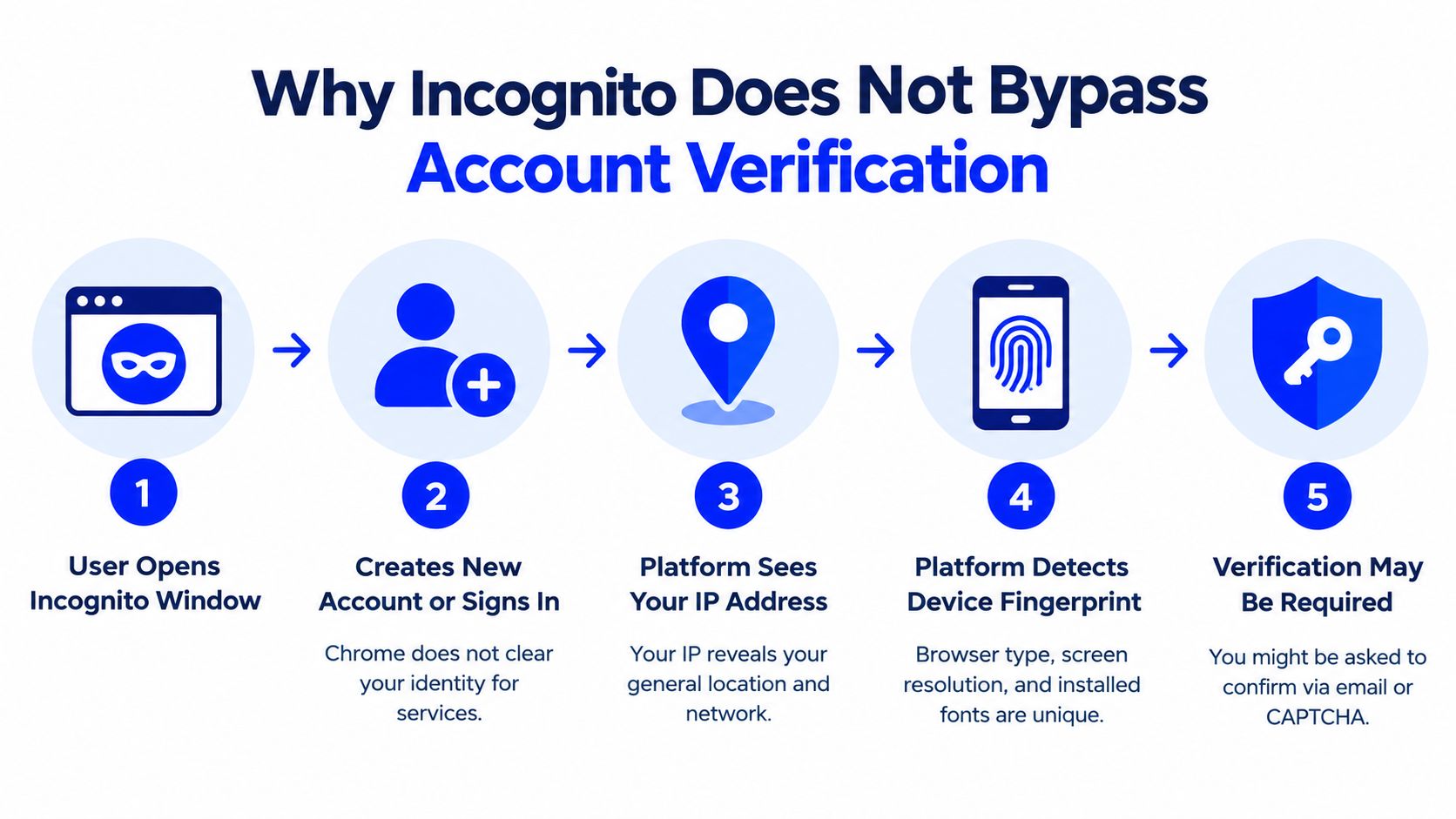
Verification and recovery are server-side decisions
A new Incognito window can help create a clean browser session. It can't waive a platform's requirement to verify a phone number, email address, or other recovery method. If a service asks for SMS confirmation, that happens because the service wants stronger proof than a cookie or ordinary browser session can provide.
The same logic applies to recovery. A different new number doesn't recover an existing account that was tied to another number. Official recovery steps always come first when they solve the problem. For readers trying to understand how SMS checks work in practice, this guide on SMS verification codes covers the basic workflow and where code delivery fits.
A hypothetical example makes the difference clear. If someone opens Incognito to create a new social account, the site can still ask for a code. If someone opens Incognito to recover an old account, the site can still require the old recovery path or another approved method. The browser mode doesn't overrule the platform.
Common Incognito Myths Worth Retiring
A lot of bad advice about Incognito comes from mixing up local privacy with network privacy.
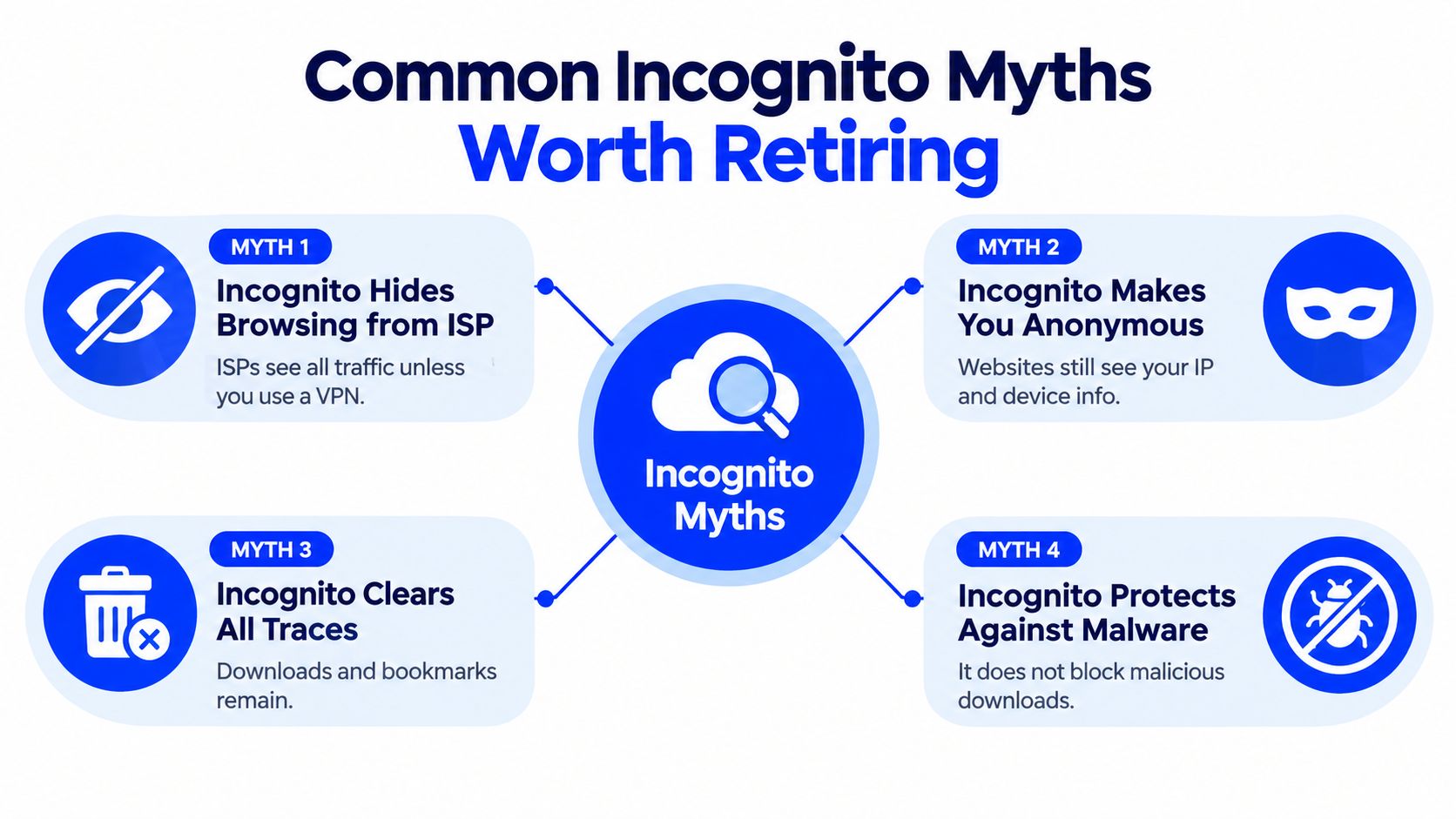
Four myths that keep causing trouble
“Incognito hides browsing from the ISP.” It doesn't. Google notes that employers, schools, and internet providers may still be able to see activity in Incognito, as explained in Chrome's help page on what Incognito does and doesn't do.
“Websites can't track someone in Incognito.” They still can through account logins, first-party activity, and other signals during the session.
“Incognito clears everything.” Downloads and bookmarks remain, so the device may still show evidence of the session.
“Incognito protects against malware or phishing.” It doesn't replace normal browsing caution, security tools, or platform warnings.
Incognito changes what Chrome keeps. It doesn't change what a network, a website, or an account system can still observe.
Troubleshooting and Privacy Best Practices
When Incognito seems broken, the cause is usually ordinary.
Quick fixes
- Shortcut won't open: A managed school or work device may restrict browser settings. The menu path inside Chrome may still show whether private browsing is allowed.
- Extensions disappeared: Chrome commonly disables extensions in Incognito unless they're allowed manually for private sessions.
- Sites keep signing out: That's expected. Incognito clears session data after all private windows close.
- Private tabs seem “stuck” on mobile: A background Incognito tab can keep the session alive until it is fully closed.
Better habits for shared devices and account work
For broader privacy beyond the browser, people often layer tools and settings. A VPN can hide traffic from the local internet provider, but it still doesn't remove a website's own verification rules. Shared-device users should also review whether bookmarks, downloads, or saved files could still reveal activity after the private session ends.
Teams thinking more broadly about how to protect owner contacts privacy can treat Incognito as one small control inside a larger privacy routine, not the whole plan.
If a service needs SMS verification for a legitimate new account and the platform supports the chosen number type, options include a personal mobile number, an approved work number, or a temporary verification service for that specific workflow. Readers comparing those options may find this explanation of what a virtual phone number is useful, especially because a temporary verification number is not the same thing as a long-term personal line.
Putting It All Together
Incognito makes the most sense when it's placed in the right layer. It helps keep a browser session off the device after the last private window closes, which is useful for shared computers, one-off logins, and quick testing.
It doesn't erase platform identity checks, and it doesn't replace account recovery methods. Websites and apps still apply their own rules, whether the session happens in a normal window or a private one. Readers exploring wider digital-literacy topics, including privacy-aware browsing habits and related online workflows, may also like broader resources such as AI tools for students, especially when comparing how different tools handle accounts and personal data.
Used well, Incognito is practical. Used as an invisibility tool, it creates false confidence.
LineVerifier offers paid SMS verification for supported services and countries, with the available number type, price, access terms, and any refund eligibility shown on the live offer before purchase. That can be relevant when a platform legitimately requires SMS for a new verification flow, but it won't bypass a site's rules or recover an account tied to a different number. Readers who need to check current supported options can visit LineVerifier.